<?xml version="1.0" encoding="UTF-8"?>
<feed xmlns="http://www.w3.org/2005/Atom"
xmlns:thr="http://purl.org/syndication/thread/1.0"
xml:lang="zh-CN"
xml:base="http://wn1998.com/category/Linux/"
>
<title type="text">Linux学习网 - Linux</title>
<subtitle type="text">Linux资料,教程,新闻</subtitle>
<updated>2018-05-03T11:07:00+08:00</updated>
<generator uri="http://typecho.org/" version="1.1/17.10.30">Typecho</generator>
<link rel="alternate" type="text/html" href="http://wn1998.com/category/Linux/" />
<id>http://wn1998.com/feed/atom/category/Linux/</id>
<link rel="self" type="application/atom+xml" href="http://wn1998.com/feed/atom/category/Linux/" />
<entry>
<title type="html"><![CDATA[Linux系统运维之修炼秘法]]></title>
<link rel="alternate" type="text/html" href="http://wn1998.com/archives/14/" />
<id>http://wn1998.com/archives/14/</id>
<updated>2018-05-03T11:07:00+08:00</updated>
<published>2018-05-03T11:07:00+08:00</published>
<author>
    <name>admin</name>
    <uri>http://www.typecho.org</uri>
</author>
<summary type="html"><![CDATA[在这个现如今的互联网高速发展的时代，如何才能保持住一门铁的饭碗。无疑最稳妥的自然就是选择一门任何时代都不会落伍的技能，来选择深入学习研究。大家可能觉得这一期的Linux就该这么学的话题比较世俗。...]]></summary>
<content type="html" xml:base="http://wn1998.com/archives/14/" xml:lang="zh-CN"><![CDATA[
<p>在这个现如今的互联网高速发展的时代，如何才能保持住一门铁的饭碗。无疑最稳妥的自然就是选择一门任何时代都不会落伍的技能，来选择深入学习研究。大家可能觉得这一期的Linux就该这么学的话题比较世俗。但是不得不说，当下时代唯有一定的经济能力，才可稳当的在这个社会上立足。<br /><br />而接下来要给大家介绍的就是一门发展延伸了很多年且越来越火的技能，那就是我们今天的猪脚——Linux运维。而想要拿到铁饭碗乃至高薪。那唯有将Linux运维这部功法修炼到至高境界。才有拿到高薪的机会。而本期讨论的就是如何修炼Linux运维。给大家推荐一本Linux学习书籍《Linux就该这么学》，耗时三年完成的一本Linux学习书籍，非常不错。</p>
]]></content>
<link rel="replies" type="text/html" href="http://wn1998.com/archives/14/#comments" thr:count="0" />
<link rel="replies" type="application/atom+xml" href="http://wn1998.com/feed/atom/archives/14/" thr:count="0"/>
</entry>
<entry>
<title type="html"><![CDATA[Linux 安装]]></title>
<link rel="alternate" type="text/html" href="http://wn1998.com/archives/12/" />
<id>http://wn1998.com/archives/12/</id>
<updated>2018-05-03T11:05:00+08:00</updated>
<published>2018-05-03T11:05:00+08:00</published>
<author>
    <name>admin</name>
    <uri>http://www.typecho.org</uri>
</author>
<summary type="html"><![CDATA[本章节我们将为大家介绍Linux的安装。本章节以 centos6.4 为例。centos 下载地址：可以去官网下载最新版本：https://www.centos.org/download/以下针...]]></summary>
<content type="html" xml:base="http://wn1998.com/archives/12/" xml:lang="zh-CN"><![CDATA[
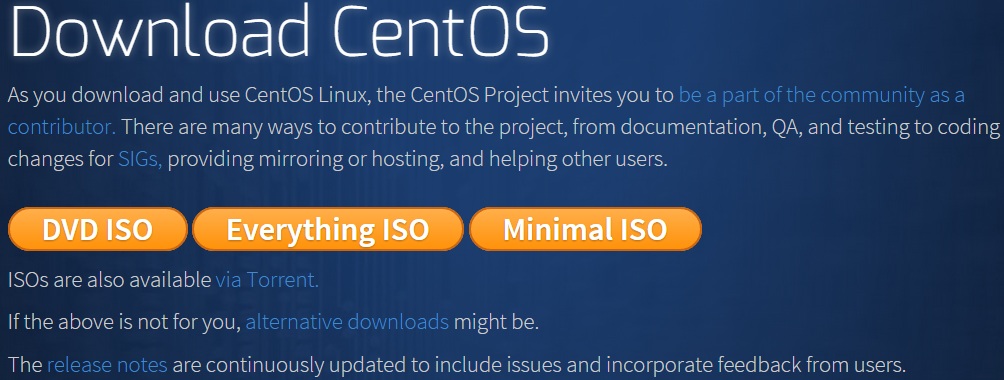
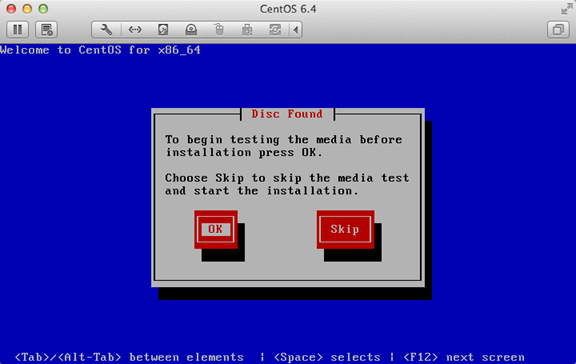
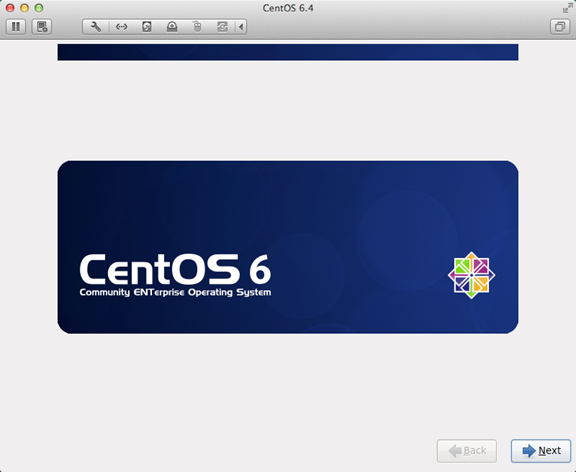
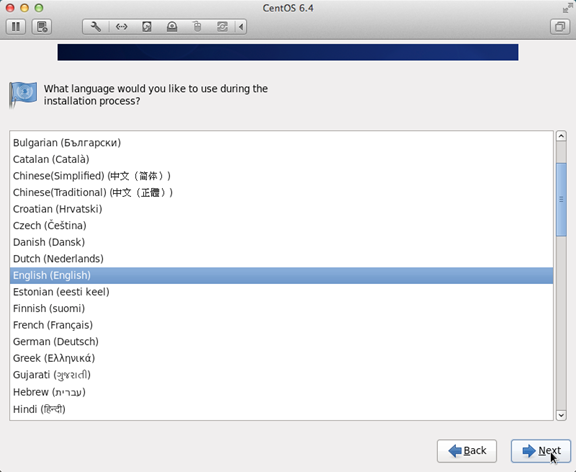
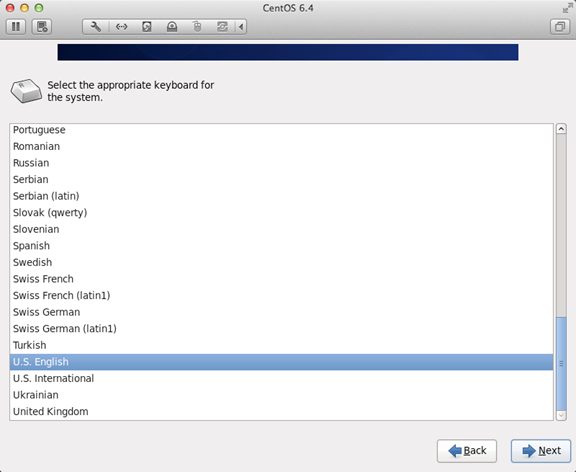
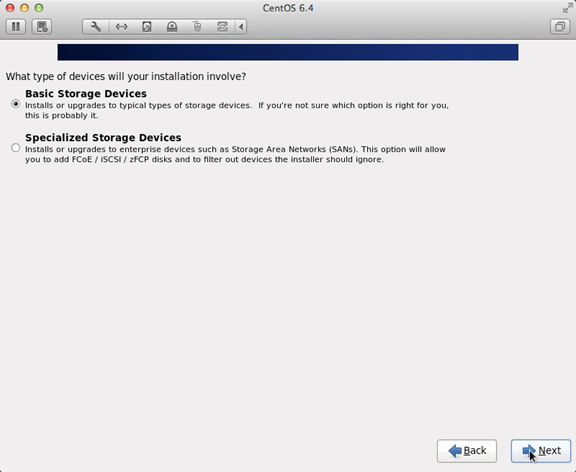
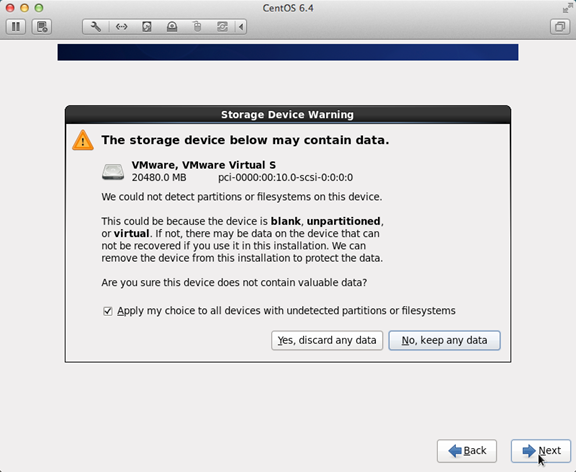
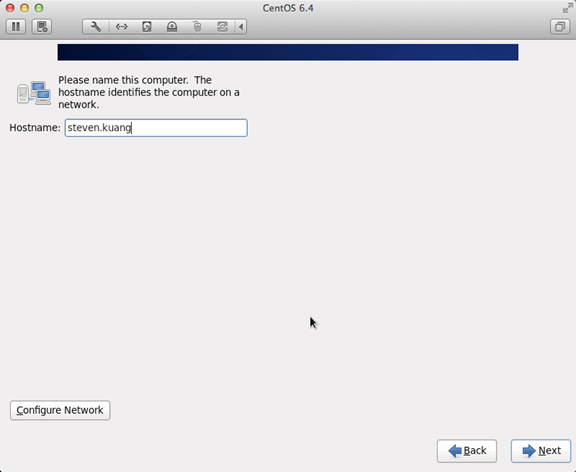
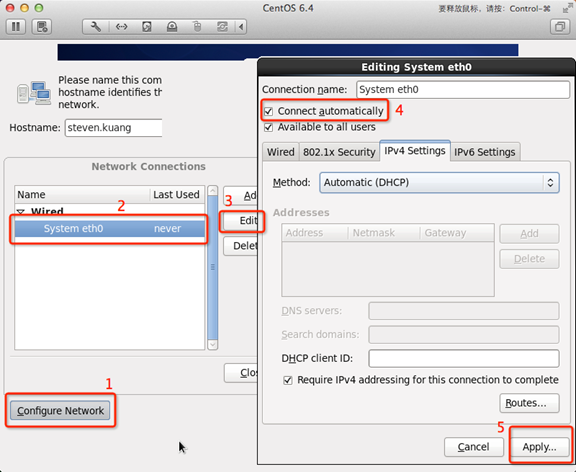
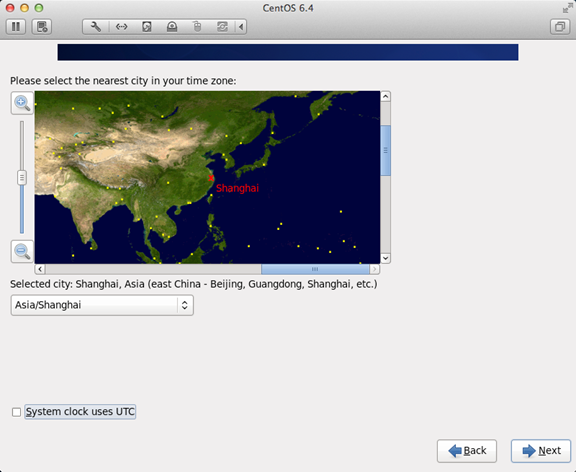
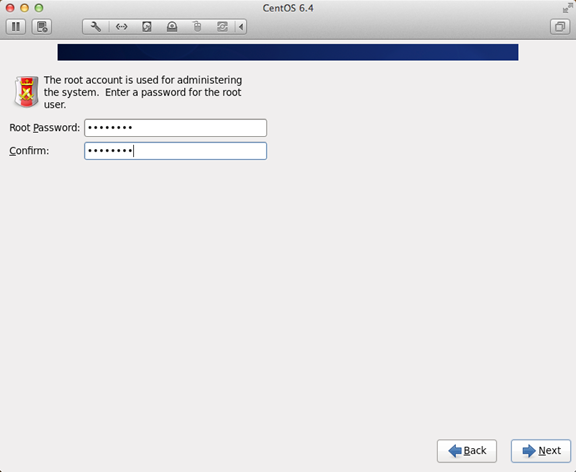
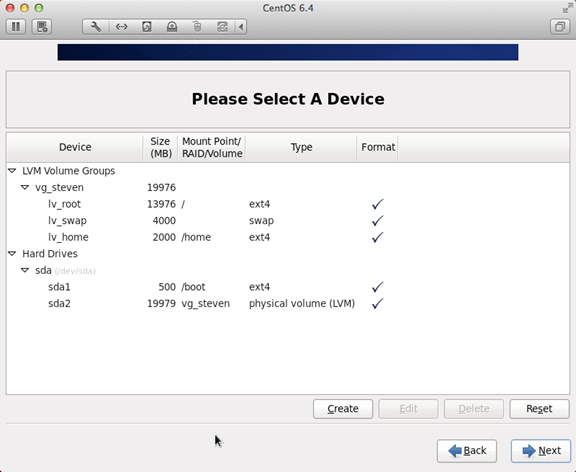
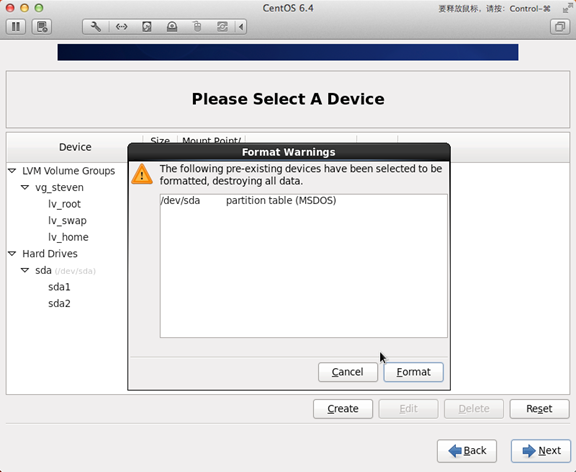
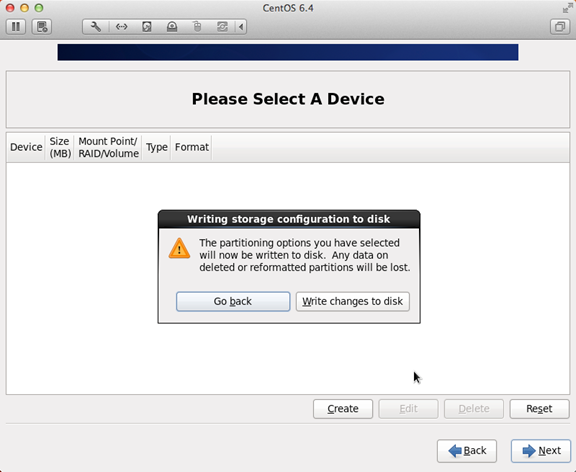
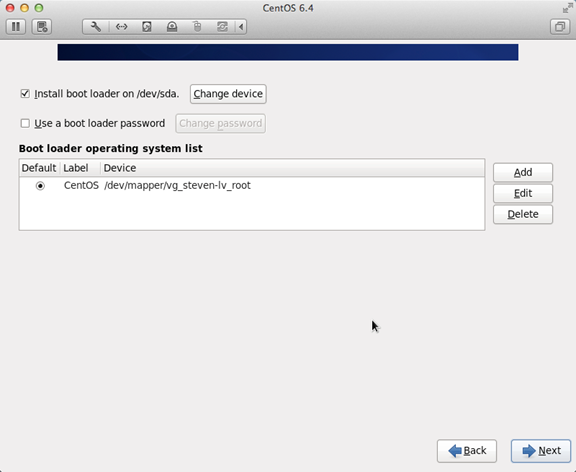
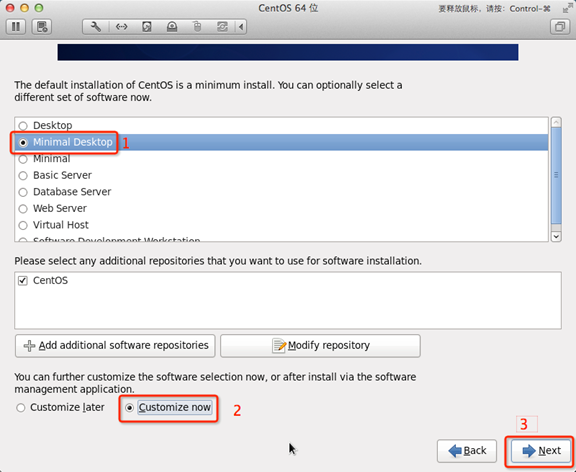
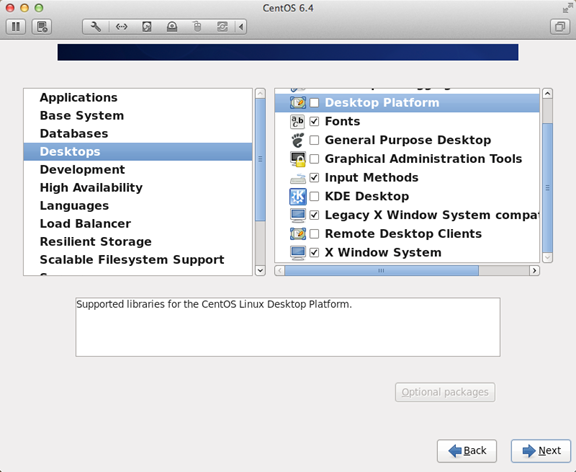
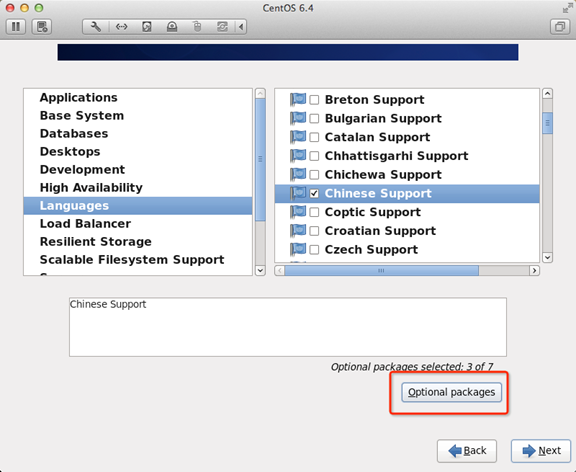
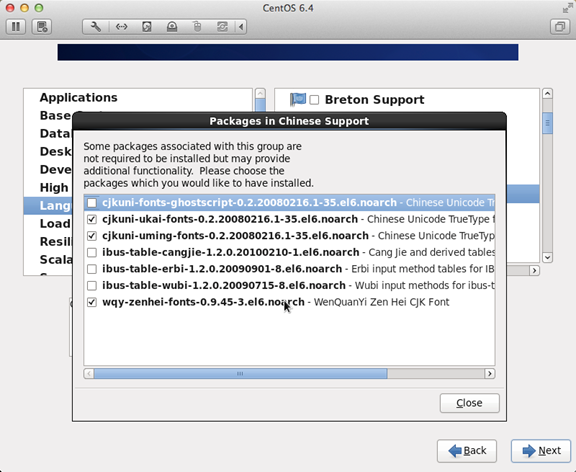
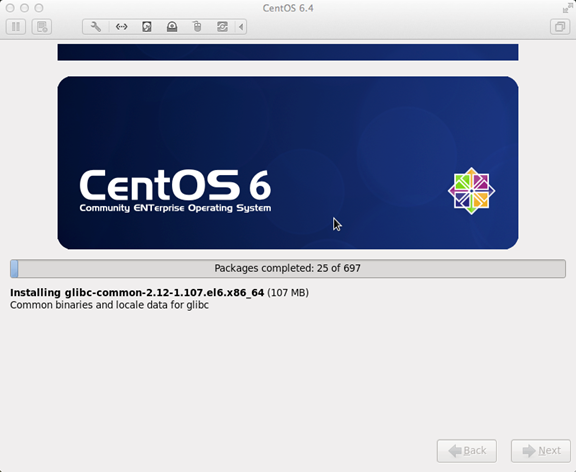
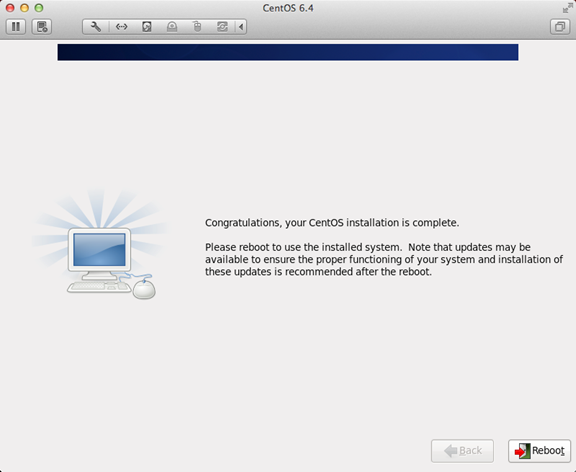
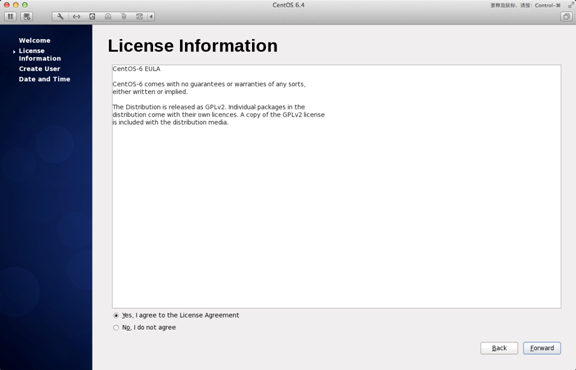
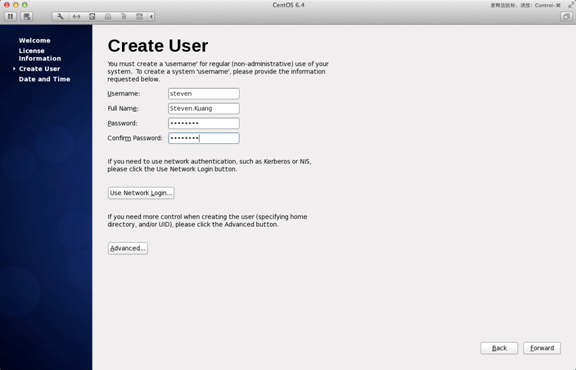
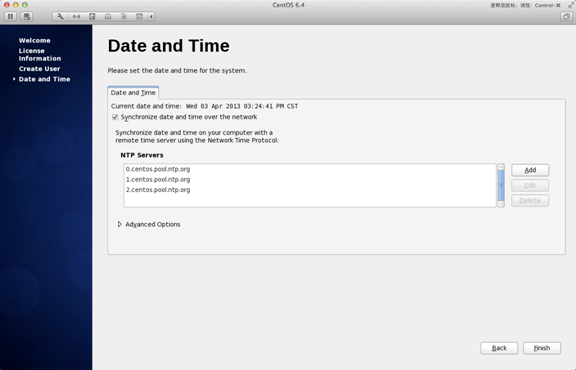
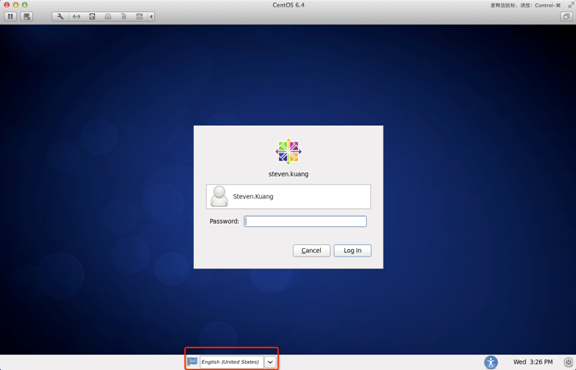
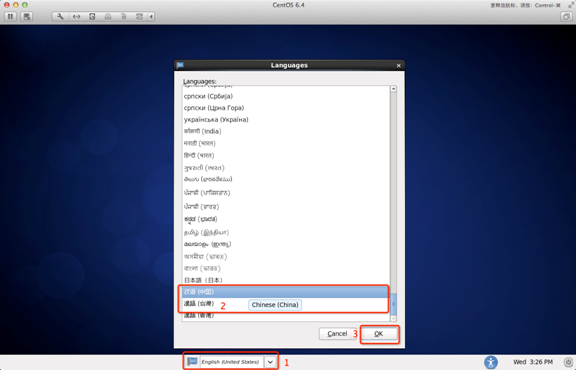
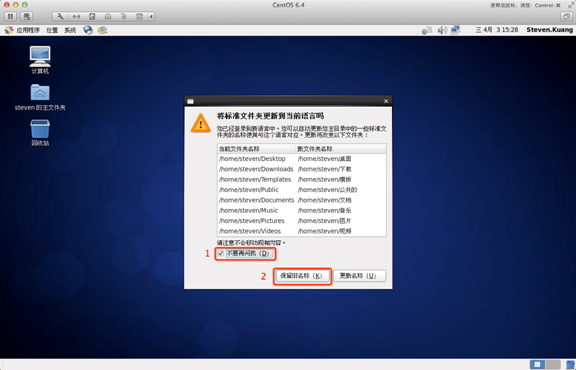
<p>本章节我们将为大家介绍Linux的安装。</p><p>本章节以 centos6.4 为例。</p><p>centos 下载地址：</p><p>可以去官网下载最新版本：<a href="https://www.centos.org/download/" target="_blank">https://www.centos.org/download/</a></p><p><img src="http://www.runoob.com/wp-content/uploads/2017/06/1497342019-2668-2a90-3944-9027-0352de39b1fe.jpg" /></p><p>以下针对各个版本的ISO镜像文件，进行一一说明：</p><ul>	<li>CentOS-7.0-x86_64-DVD-1503-01.iso :            标准安装版，一般下载这个就可以了（推荐）</li>	<li>CentOS-7.0-x86_64-NetInstall-1503-01.iso :      网络安装镜像（从网络安装或者救援系统）</li>	<li>CentOS-7.0-x86_64-Everything-1503-01.iso:     对完整版安装盘的软件进行补充，集成所有软件。（包含centos7的一套完整的软件包，可以用来安装系统或者填充本地镜像）</li>	<li>CentOS-7.0-x86_64-GnomeLive-1503-01.iso:   GNOME桌面版</li>	<li>CentOS-7.0-x86_64-KdeLive-1503-01.iso:         KDE桌面版</li>	<li>CentOS-7.0-x86_64-livecd-1503-01.iso :          光盘上运行的系统，类拟于winpe</li>	<li>CentOS-7.0-x86_64-minimal-1503-01.iso :       精简版，自带的软件最少</li></ul><blockquote><p>注：建议安装64位Linux系统。</p><p>旧版本下载地址：<a href="https://wiki.centos.org/Download" target="_blank">https://wiki.centos.org/Download</a></p></blockquote><p>接下来你需要将下载的Linux系统刻录成光盘或U盘。</p><p>注：你也可以在Window上安装VMware虚拟机来安装Linux系统。</p><p><br /></p><div class="ke-more-excerpt"></div><p><br /></p><p><hr /></p><h2>Linux 安装步骤</h2><p>1、首先，使用光驱或U盘或你下载的Linux ISO文件进行安装。</p><p>界面说明：</p><p><img class="attachment-full" src="http://www.runoob.com/wp-content/uploads/2014/06/image001.png" alt="image001" width="576" height="482" /></p><p>Install or upgrade an existing system 安装或升级现有的系统</p><p>install system with basic video driver 安装过程中采用基本的显卡驱动</p><p>Rescue installed system 进入系统修复模式</p><p>Boot from local drive&nbsp;&nbsp; 退出安装从硬盘启动</p><p>Memory test&nbsp; 内存检测</p><p>注：用联想E49安装时选择第一项安装时会出现屏幕显示异常的问题，后改用第二项安装时就没有出现问题</p><p>2、这时直接"skip"就可以了</p><p><img class="attachment-full" src="http://www.runoob.com/wp-content/uploads/2014/06/image002.png" alt="image002" width="576" height="364" /></p><p>3、出现引导界面，点击"next"</p><p><img class="attachment-full" src="http://www.runoob.com/wp-content/uploads/2014/06/image003.png" alt="image003" width="576" height="472" /></p><p>4、选中"English（English）"否则会有部分乱码问题</p><p><img class="attachment-full" src="http://www.runoob.com/wp-content/uploads/2014/06/image004.png" alt="image004" width="576" height="472" /></p><p>5、键盘布局选择"U.S.English"</p><p><img class="attachment-full" src="http://www.runoob.com/wp-content/uploads/2014/06/image005.png" alt="image005" width="576" height="472" /></p><p>6、选择"Basic Storage Devices"点击"Next"</p><p><img class="attachment-full" src="http://www.runoob.com/wp-content/uploads/2014/06/image006.png" alt="image006" width="576" height="472" /></p><p>7、询问是否忽略所有数据，新电脑安装系统选择"Yes,discard any data"</p><p><img class="attachment-full" src="http://www.runoob.com/wp-content/uploads/2014/06/image007.png" alt="image007" width="576" height="472" /></p><p>8、Hostname填写格式"英文名.姓"</p><p><img class="attachment-full" src="http://www.runoob.com/wp-content/uploads/2014/06/image008.png" alt="image008" width="576" height="472" /></p><p>9、网络设置安装图示顺序点击就可以了</p><p><img class="attachment-full" src="http://www.runoob.com/wp-content/uploads/2014/06/image009.png" alt="image009" width="576" height="472" /></p><p>10、时区可以在地图上点击，选择"shanghai"并取消System clock uses UTC前面的对勾</p><p><img class="attachment-full" src="http://www.runoob.com/wp-content/uploads/2014/06/image010.png" alt="image010" width="576" height="472" /></p><p>11、设置root的密码</p><p><img class="attachment-full" src="http://www.runoob.com/wp-content/uploads/2014/06/image011.png" alt="image011" width="576" height="472" /></p><p>12、硬盘分区，一定要按照图示点选</p><p><img class="attachment-full" src="http://www.runoob.com/wp-content/uploads/2014/06/image012.png" alt="image012" width="576" height="472" /></p><p>13、调整分区，必须要有/home这个分区，如果没有这个分区，安装部分软件会出现不能安装的问题</p><p><img class="attachment-full" src="http://www.runoob.com/wp-content/uploads/2014/06/image013.png" alt="image013" width="576" height="472" /></p><p>14、询问是否格式化分区</p><p><img class="attachment-full" src="http://www.runoob.com/wp-content/uploads/2014/06/image014.png" alt="image014" width="576" height="472" /></p><p>15、将更改写入到硬盘</p><p><img class="attachment-full" src="http://www.runoob.com/wp-content/uploads/2014/06/image015.png" alt="image015" width="576" height="472" /></p><p>16、引导程序安装位置</p><p><img class="attachment-full" src="http://www.runoob.com/wp-content/uploads/2014/06/image016.png" alt="image016" width="576" height="472" /></p><p>17、最重要的一步，也是本教程最关键的一步，也是其他教程没有提及的一步，按图示顺序点击</p><p><img class="attachment-full" src="http://www.runoob.com/wp-content/uploads/2014/06/image017.png" alt="image017" width="576" height="472" /></p><p>18、取消以下内容的所有选项</p><p>Applications</p><p>Base System</p><p>Servers</p><p>并对Desktops进行如下设置</p><p>即取消如下选项：</p><p>Desktop Debugging and Performance Tools</p><p>Desktop Platform</p><p>Remote Desktop Clients</p><p>Input Methods中仅保留ibus-pinyin-1.3.8-1.el6.x86_64,其他的全部取消</p><p><img class="attachment-full" src="http://www.runoob.com/wp-content/uploads/2014/06/image018.png" alt="image018" width="576" height="472" /></p><p><img class="attachment-full" src="http://www.runoob.com/wp-content/uploads/2014/06/image019.png" alt="image019" width="576" height="472" /></p><p>19、选中Languages，并选中右侧的Chinese Support然后点击红色区域</p><p><img class="attachment-full" src="http://www.runoob.com/wp-content/uploads/2014/06/image020.png" alt="image020" width="576" height="472" /></p><p>20、调整完成后如下图所示</p><p><img class="attachment-full" src="http://www.runoob.com/wp-content/uploads/2014/06/image021.png" alt="image021" width="576" height="472" /></p><p>21、至此，一个最精简的桌面环境就设置完成了，</p><p><img class="attachment-full" src="http://www.runoob.com/wp-content/uploads/2014/06/image022.png" alt="image022" width="576" height="472" /></p><p>22、安装完成，重启</p><p><img class="attachment-full" src="http://www.runoob.com/wp-content/uploads/2014/06/image023.png" alt="image023" width="576" height="472" /></p><p>23、重启之后，的License Information</p><p><img class="attachment-full" src="http://www.runoob.com/wp-content/uploads/2014/06/image024.png" alt="image024" width="576" height="370" /></p><p>24、Create User</p><p>Username：填写您的英文名（不带.姓）</p><p>Full Name：填写您的英文名.姓（首字母大写）</p><p><img class="attachment-full" src="http://www.runoob.com/wp-content/uploads/2014/06/image025.png" alt="image025" width="576" height="370" /></p><p>25、"Date and Time" 选中 "Synchronize data and time over the network"</p><p>Finsh之后系统将重启</p><p><img class="attachment-full" src="http://www.runoob.com/wp-content/uploads/2014/06/image026.png" alt="image026" width="576" height="370" /></p><p>26、第一次登录，登录前不要做任何更改，这个很重要！！！登录之后紧接着退出</p><p>第二次登录，选择语言，在红色区域选择下拉小三角，选other，选中"汉语（中国）"</p><p><img class="attachment-full" src="http://www.runoob.com/wp-content/uploads/2014/06/image027.png" alt="image027" width="576" height="370" /></p><p><img class="attachment-full" src="http://www.runoob.com/wp-content/uploads/2014/06/image028.png" alt="image028" width="576" height="370" /></p><p>27、登录之后，请一定按照如下顺序点击！</p><p>至此，CentOS安装完成，如有其他问题，请随时与我联系！！</p><p><img class="attachment-full" src="http://www.runoob.com/wp-content/uploads/2014/06/image029.png" alt="image029" width="576" height="370" /></p>
]]></content>
<link rel="replies" type="text/html" href="http://wn1998.com/archives/12/#comments" thr:count="0" />
<link rel="replies" type="application/atom+xml" href="http://wn1998.com/feed/atom/archives/12/" thr:count="0"/>
</entry>
<entry>
<title type="html"><![CDATA[ssh命令]]></title>
<link rel="alternate" type="text/html" href="http://wn1998.com/archives/11/" />
<id>http://wn1998.com/archives/11/</id>
<updated>2018-05-03T11:04:00+08:00</updated>
<published>2018-05-03T11:04:00+08:00</published>
<author>
    <name>admin</name>
    <uri>http://www.typecho.org</uri>
</author>
<summary type="html"><![CDATA[ssh命令是openssh套件中的客户端连接工具，可以给予ssh加密协议实现安全的远程登录服务器。语法ssh(选项)(参数)选项-1：强制使用ssh协议版本1；-2：强制使用ssh协议版本2；-...]]></summary>
<content type="html" xml:base="http://wn1998.com/archives/11/" xml:lang="zh-CN"><![CDATA[
<div id="arc-body"><p>ssh命令是openssh套件中的客户端连接工具，可以给予ssh加密协议实现安全的远程登录服务器。</p><h3>语法<br /></h3><pre>ssh(选项)(参数)</pre><h3>选项<br /></h3><pre>-1：强制使用ssh协议版本1；-2：强制使用ssh协议版本2；-4：强制使用IPv4地址；-6：强制使用IPv6地址；-A：开启认证代理连接转发功能；-a：关闭认证代理连接转发功能；-b：使用本机指定地址作为对应连接的源<a href="http://man.linuxde.net/ip" target="_blank">ip</a>地址；-C：请求压缩所有数据；-F：指定ssh指令的配置文件；-f：后台执行ssh指令；-g：允许远程主机连接主机的转发端口；-i：指定身份文件；-l：指定连接远程服务器登录用户名；-N：不执行远程指令；-o：指定配置选项；-p：指定远程服务器上的端口；-q：静默模式；-X：开启X11转发功能；-x：关闭X11转发功能；-y：开启信任X11转发功能。</pre><h3>参数<br /></h3><ul>		<li>远程主机：指定要连接的远程ssh服务器；</li>		<li>指令：要在远程ssh服务器上执行的指令。</li>	</ul></div>
]]></content>
<link rel="replies" type="text/html" href="http://wn1998.com/archives/11/#comments" thr:count="0" />
<link rel="replies" type="application/atom+xml" href="http://wn1998.com/feed/atom/archives/11/" thr:count="0"/>
</entry>
<entry>
<title type="html"><![CDATA[ 给我个完美的解释，到底为什么要用Linux系统?]]></title>
<link rel="alternate" type="text/html" href="http://wn1998.com/archives/8/" />
<id>http://wn1998.com/archives/8/</id>
<updated>2015-07-18T14:43:00+08:00</updated>
<published>2015-07-18T14:43:00+08:00</published>
<author>
    <name>admin</name>
    <uri>http://www.typecho.org</uri>
</author>
<summary type="html"><![CDATA[&amp;nbsp;一个名为 SilverKnight 的用户在 Reddit 的 Linux 版块上问了如下问题：我知道这个问题肯定被问过了，但我还是想听听年轻一代使用 Linux 的原因，以及是什么...]]></summary>
<content type="html" xml:base="http://wn1998.com/archives/8/" xml:lang="zh-CN"><![CDATA[
<p>&nbsp;一个名为 SilverKnight 的用户在 Reddit 的 Linux 版块上问了如下问题：<br />我知道这个问题肯定被问过了，但我还是想听听年轻一代使用 Linux 的原因，以及是什么让他们坚定地成为 Linux 用户。<br />我无意阻止大家讲出你们那些精彩的 Linux 故事，但是我还是对那些没有经历过什么精彩故事的新人的想法比较感兴趣。<br />我27岁，半吊子 Linux 用户，这些年装过不少发行版，但没有投入全部精力去玩 Linux。我正在找更多的、能让我全身心投入到 Linux 潮流的理由，或者说激励。<br />Why_do_you_use_Linux<br />以下是网站上的回复：<br />DoublePlusGood：我12岁开始使用 Backtrack（现在改名为 Kali），因为我想成为一名黑客（LCTT 译注：原文“1337 haxor”，1337 是 leet 的火星文写法，意为'火星文'，haxor 为 hackor 的火星文写法，意为'黑客'，另一种写法是 1377 h4x0r，满满的火星文文化）。我现在一直使用 ArchLinux，因为它给我无限自由，让我对我的电脑可以为所欲为。<br /></p><div class="ke-more-excerpt"></div><p>Zack：我记得是12、3岁的时候使用 Linux，现在15岁了。<br />我11岁的时候就对 Windows XP 感到不耐烦，一个简单的功能，比如关机，TMD 都要让我耐心等着它慢慢完成。<br />在那之前几个月，我在 freenode IRC 聊天室参与讨论了一个游戏，它是一个开源项目，大多数用户使用 Linux。<br />我不断听到 Linux 但当时对它还没有兴趣。然而由于这些聊天频道（大部分在 freenode 上）谈论了很多编程话题，我就开始学习 python 了。<br />一年后我尝试着安装 GNU/Linux （主要是 Ubuntu）到我的新电脑（其实不新，但它是作为我的生日礼物被我得到的）。不幸的是它总是不能正常工作，原因未知，也许硬盘坏了，也许灰尘太多了。<br />那时我放弃自己解决这个问题，然后缠着老爸给我的电脑装上 Ubuntu，他也无能为力，原因同上。<br />在追求 Linux 一段时间后，我打算抛弃 Windows，使用 Linux Mint 代替 Ubuntu，本来没抱什么希望，但 Linux Mint 竟然能跑起来！<br />于是这个系统我用了6个月。<br />那段时间我的一个朋友给了我一台虚拟机，跑 Ubuntu 的，我用了一年，直到我爸给了我一台服务器。<br />6个月后我得到一台新 PC（现在还在用）。于是起想折腾点不一样的东西。<br />我打算装 openSUSE。<br />我很喜欢这个系统。然后在圣诞节的时候我得到树莓派，上面只能跑 Debian，还不能支持其它发行版。<br />Cqz：我9岁的时候有一次玩 Windows 98，结果这货当机了，原因未知。我没有 Windows 安装盘，但我爸的一本介绍编程的杂志上有一张随书附赠的光盘，这张光盘上刚好有 Mandrake Linux 的安装软件，于是我瞬间就成为了 Linux 用户。我当时还不知道自己在玩什么，但是玩得很嗨皮。这些年我虽然在电脑上装了多种 Windows 版本，但是 FLOSS 世界才是我的家（LCTT 译注：FLOSS —— free/Libre and Open Source Software，自由/开源软件）。现在我只把 Windows 装在虚拟机上，用来玩游戏。<br />Tosmarcel：15岁那年对'编程'这个概念很好奇，然后我开始了哈佛课程'CS50'，这个课程要我们安装 Linux 虚拟机用来执行一些命令。当时我问自己为什么 Windows 没有这些命令？于是我 Google 了 Linux，搜索结果出现了 Ubuntu，在安装 Ubuntu 的时候不小心把 Windows 分区给删了。。。当时对 Linux 毫无所知，适应这个系统非常困难。我现在16岁，用 ArchLinux，不想用回 Windows，我爱 ArchLinux。<br />Micioonthet：第一次听说 Linux 是在我5年级的时候，当时去我一朋友家，他的笔记本装的就是 MEPIS（Debian的一个比较老的衍生版），而不是 XP。<br />原来是他爸爸是个美国的社会学家，而他全家都不信任微软。我对这些东西完全陌生，这系统完全没有我熟悉的软件，我很疑惑他怎么能使用。<br />我13岁那年还没有自己的笔记本电脑，而我另一位朋友总是抱怨他的电脑有多慢，所以我打算把它买下来并修好它。我花了20美元买下了这台装着 Windows Vista 系统、跑满病毒、完全无法使用的惠普笔记本。我不想重装讨厌的 Windows 系统，记得 Linux 是免费的，所以我刻了一张 Ubuntu 14.04 光盘，马上把它装起来，然后我被它的高性能给震精了。<br />“我的世界（Minecraft）”（由于它允许运行在 JAVA 上，所以当时它是 Linux 下为数不多的几个游戏之一）在 Vista 上只能跑5帧每秒，而在 Ubuntu 上能跑到25帧。<br />我到现在还会偶尔使用一下那台笔记本，Linux 可不会在乎你的硬件设备有多老。<br />之后我把我爸也拉入 Linux 行列，我们会以很低的价格买老电脑，装上 Linux Mint 或其他轻量级发行版，这省了好多钱。<br />Webtm：我爹每台电脑都会装多个发行版，有几台是 opensuse 和 Debian，他的个人电脑装的是 Slackware。所以我记得很小的时候一直在玩 debian，但没有投入很多精力，我用了几年的 Windows，然后我爹问我有没有兴趣试试 debian。这是个有趣的经历，在那之后我一直使用 debian。而现在我不用 Linux，转投 FreeBSD，5个月了，用得很开心。<br />完全控制自己的系统是个很奇妙的体验。开源界有好多酷酷的软件，我认为在自己解决一些问题并且利用这些工具解决其他事情的过程是最有趣的。当然稳定和高效也是吸引我的地方。更不用说它的保密级别了。<br />Wyronaut：我今年18，第一次玩 Linux 是13岁，当时玩的 Ubuntu，为啥要碰 Linux？因为我想搭一个“我的世界”的服务器来和小伙伴玩游戏，当时“我的世界”可是个新鲜玩意儿。而搭个私服需要用 Linux 系统。<br />当时我还是个新手，对着 Linux 的命令行有些傻眼，因为很多东西都要我自己处理。还是多亏了 Google 和维基，我成功地在多台老 PC 上部署了一些简单的服务器，那些早已无人问津的老古董机器又能发挥余热了。<br />跑过游戏服务器后，我又开始跑 web 服务器，先是跑了几年 HTML，CSS 和 PHP，之后受 TheNewBoston 视频的误导转到了 JAVA。<br />一周后放弃 JAVA 改用 Python，当时学习 Python 用的书名叫《Learn Python The Hard Way》，作者是 Zed A. Shaw。我花了两周学完 Python，然后开始看《C++ Primer》，因为我想做游戏开发。看到一半（大概500页）的时候我放弃了。那个时候我有点讨厌玩电脑了。<br />这样中断了一段时间之后，我决定学习 JavaScript，读了2本书，试了4个平台，然后又不玩了。<br />现在到了不得不找一所学校并决定毕业后找什么样工作的糟糕时刻。我不想玩图形界面编程，所以我不会进游戏行业。我也不喜欢画画和建模。然后我发现了一个涉及网络安全的专业，于是我立刻爱上它了。我挑了很多 C 语言的书来度过这个假期，并且复习了一下数学来迎接新的校园生活。<br />目前我玩 archlinux，不同 PC 上跑着不同任务，它们运行很稳定。<br />可以说 Linux 带我进入编程的世界，而反过来，我最终在学校要学的就是 Linux。我估计会终生感谢 Linux。<br />Linuxllc：你们可以学学像我这样的老头。<br />扔掉 Windows！扔掉 Windows！扔掉 Windows！给自己一个坚持使用 Linux 的理由，那就是完全，彻底，远离，Windows。<br />我在 2003 年放弃 Windows，只用了5天就把所有电脑跑成 Linux，包括所有的外围设备（LCTT 译注：比如打印机？）。我不玩 Windows 里的游戏，只玩 Linux 里的。<br />Highclass：我28岁，不知道还是不是你要找的年轻人类型。<br />老实说我对电脑挺感兴趣的，当我还没接触'自由软件哲学'的时候，我认为 free 是免费的意思。我也不认为命令行界面很让人难以接受，因为我小时候就接触过 DOS 系统。<br />我第一个发行版是 Mandrake，在我11岁还是12岁那年我把家里的电脑弄得乱七八糟，然后我一直折腾那台电脑，试着让我自己的技能提升一个台阶。现在我在一家公司全职使用 Linux。（请允许我耸个肩）。<br /><hr /><br />Matto：我的电脑是旧货市场淘回来的，装 XP，跑得慢，于是我想换个系统。Google 了一下，发现 Ubuntu。当年我15、6岁，现在23了，就职的公司内部使用 Linux。<br /></p>
]]></content>
<link rel="replies" type="text/html" href="http://wn1998.com/archives/8/#comments" thr:count="0" />
<link rel="replies" type="application/atom+xml" href="http://wn1998.com/feed/atom/archives/8/" thr:count="0"/>
</entry>
</feed>